
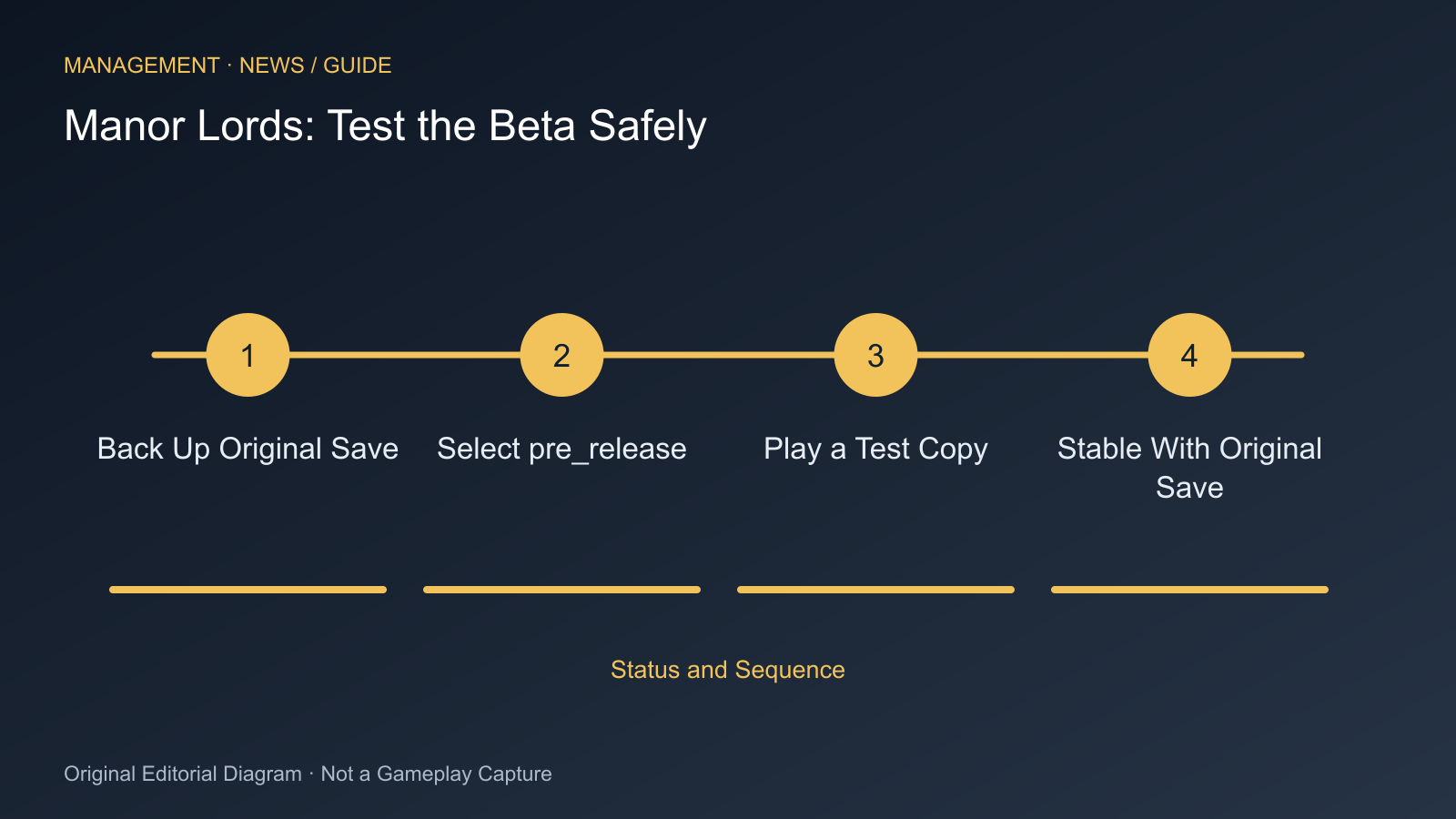
This guide applies to Manor Lords on Steam under Windows and the released beta 0.8.110 with follow-up fix 0.8.111. The public access code comes from the developer. It does not confirm identical installation for other stores or consoles.
Back Up the Starting Version
- Close Manor Lords and open %USERPROFILE%\AppData\Local\ManorLords\Saved\SaveGames in Windows Explorer.
- Copy the required saves to a separate backup folder. Check that the files are present there.
- Record your previous build and mod setup. The developer recommends removing mods for the beta because they can cause crashes.
- Keep this backup separate from saves you later write in the beta.
A backup protects the starting state. It does not confirm that a new beta save will later work in an older stable version. These are separate questions.
Select the Test Branch
- Open Steam and right-click Manor Lords in your library.
- Select Properties, then Betas.
- Enter veryNiceBasket in the access code field.
- Select pre_release in the beta list and wait for Steam to update the files.
- If updating does not start, restart the Steam client as the developer’s instructions recommend.
- Launch only after downloading and check the displayed version.
Test and Return
Use a separate test save and define what you are testing, such as crop rotation, fertiliser or a particular field display. Do not continue your only unmodified campaign exclusively in the new branch.
To return, select the normal branch without a beta in Steam. Wait for the file changeover, then use the matching unmodified starting save. Selecting a branch alone does not automatically convert a newly written beta save back to an older format.
A bug report needs the build, mod state and specific steps together. The developers point to Steam forums and Discord. A reproducible observation using a separate test save helps; “harvest broken” alone explains neither field state, season nor version.
Sources
Cover Image Source: steamstore-a.akamaihd.net
Comments